Desktop
Requirements
Before you start, you must complete the Clients repository setup instructions, as well as install the Desktop Native dependencies.
- Windows
- macOS
- Linux
These are available as additional dependencies in the Visual Studio Installer.
- Visual C++ Build tools. The newest supported version of Visual Studio can be downloaded here, use the "Community" download link for the current channel. Launch the installer and ensure the workload "Desktop development with C++" is selected.
- Xcode Command Line Tools
- The following packages
build-essentiallibsecret-1-devlibglib2.0-dev
Build native module
The desktop application relies on a native module written in rust, which needs to be compiled
separately. This is baked in to npx nx serve desktop, but you can also compile it manually with
Nx. See Desktop Native for more information.
npx nx build-native desktop
Note: This module needs to be re-built if the native code has changed.
Cross compile
Windows on ARM
If you're building in Windows on ARM, you might need to run build.js with the cross-platform
argument:
node desktop_native/build.js cross-platform
Linux & others
In certain environments such as WSL (Windows Subsystem for Linux), it might be necessary to
cross-compile the native module. To do this, first make sure you have installed the relevant rust
target. See rustup documentation for
more information.
# Ensure cargo env file is sourced.
source "$HOME/.cargo/env"

cd apps/desktop/desktop_native
export PKG_CONFIG_ALL_STATIC=1
export PKG_CONFIG_ALLOW_CROSS=1
npm run build -- --target x86_64-unknown-linux-musl # Replace with relevant target
Build instructions
We recommend using Nx commands to build the desktop application. Run the following from the repository root to build and serve (this also compiles the native module):
npx nx serve desktop
For complete Nx documentation and all available commands, see Using Nx to Build Projects.
Manual build commands
Before the migration to Nx, the desktop application was built and run directly with npm scripts. These commands are still available but are no longer the recommended approach.
cd apps/desktop
npm run electron
This script also compiles the native module before launching Electron.
Debugging
See Debugging with VS Code for how to attach the VS Code debugger to the main and renderer processes.
Biometric unlock (Native Messaging)
Instructions for configuring native messaging (communication between the desktop application and browser extension) are located in the Browser section.
Troubleshooting
Trouble building
If you see an error like this:
[Main] Error: Cannot find module '@bitwarden/desktop-native-darwin-arm64'
You likely haven't built the native module, refer to Build Native Module.
Desktop electron app window doesn't open
If running npm run electron throws an error similar to this:
[Main] npm ERR! Error: Missing script: "build-native"
or the electron window doesn't render, you may need to update node and/or npm. Upgrading from older versions to these solved this issue:
- Node:
16.18.1 - npm:
8.19.2
Windows build installation fails
When installing standard/beta builds (not portable) for the Windows platform from build artifacts, there are additional steps required. Without following the steps, the following failure occurs:
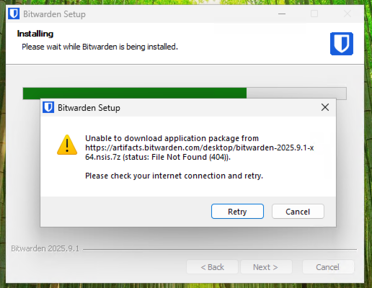
Steps:
- Download the standard / beta Windows build (the
.exefrom figure below) - Download the corresponding
.nsis.7zfile (also seen in figure below) - Place the
.nsis.7zfile in the same directory as the installer (this might require decompressing the download)
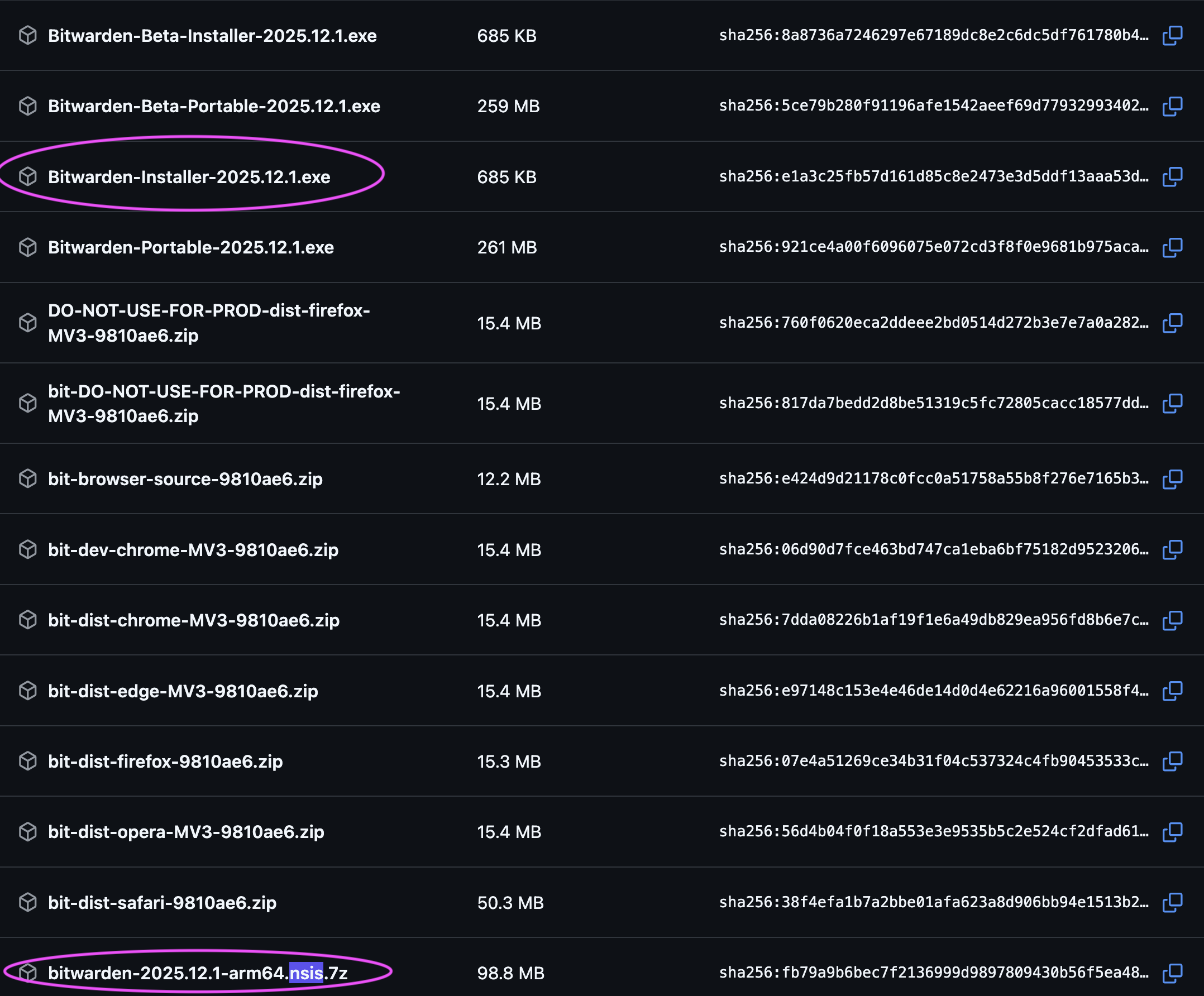
The final directory state before starting the install should look like this:
